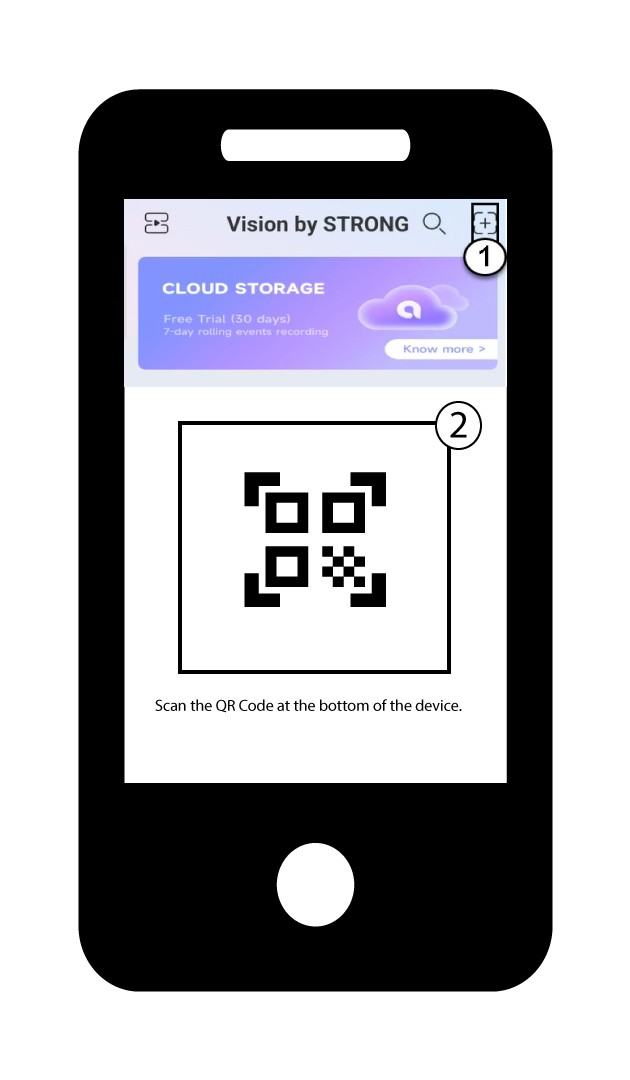
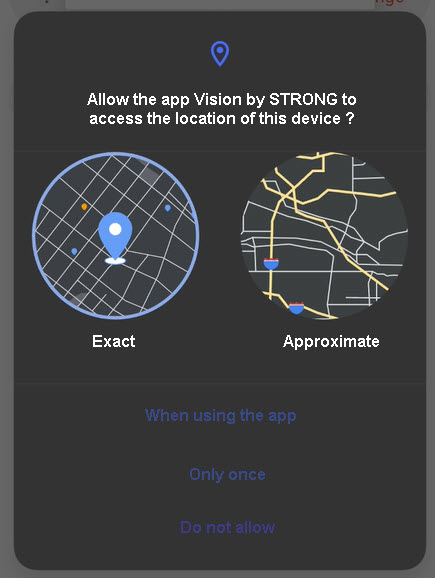
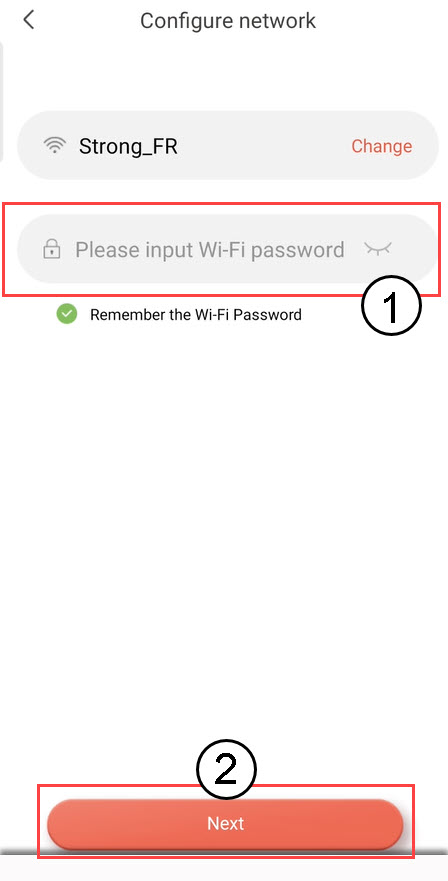
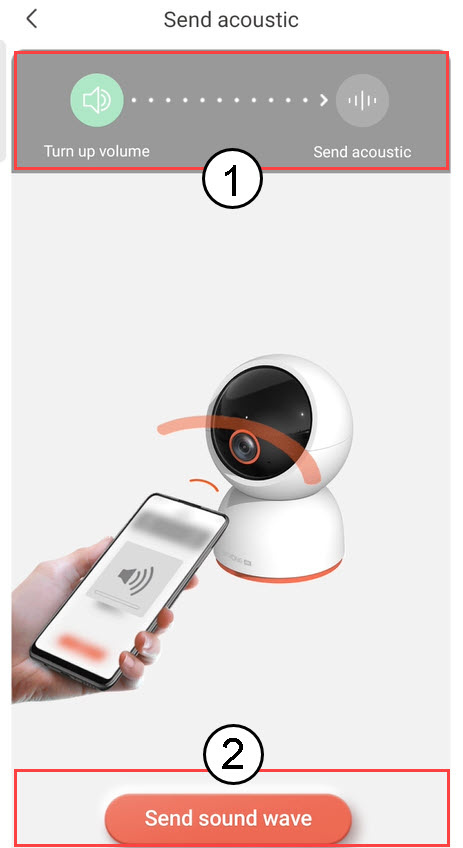
How to Add a Camera in the App


 Polski
 Български(Bułgarski)
 Hrvatski(Chorwacki)
 Čeština(Czeski)
 Dansk(Duński)
 Nederlands(Holenderski)
 English(Angielski)
 Suomi(Fiński)
 Français(Francuski)
 Deutsch(Niemiecki)
 Magyar(Węgierski)
 Italiano(Włoski)
 Norsk bokmål(Norweski bokmål)
 Português(Portugalski, Portugalia)
 Română(Rumuński)
 српски(Serbski)
 Slovenčina(Słowacki)
 Slovenščina(Słoweński)
 Español(Hiszpański)
 Svenska(Szwedzki)
 Українська(Ukraiński)